A job advertisement asks you to email your CV as a PDF and to bring a laptop to the interview for a short typing test. If you have used the internet mainly for Facebook and phone calls, that is where the gap shows. Digital literacy in Papua New Guinea means being able to use a phone or computer to do the things a job requires, and it can be built in a small, steady way even when data is short and the signal comes and goes.
This guide sets out which skills matter, the order to learn them in, and how to practise without spending much. It is written for school leavers, graduates and job seekers in towns and in rural areas.
What employers mean when they ask for computer skills
Advertisements often say “computer literate” or “proficient in Microsoft Office”. Those phrases are short for a handful of everyday tasks: typing a clear letter, saving and finding a file, sending an email with an attachment, filling in a table of figures, and searching for information without being fooled by a bad source.
Employers rarely expect advanced skills from an entry-level applicant. They expect that you can do the basics without someone standing beside you. A shop assistant who can record sales in a spreadsheet, an office trainee who can write a tidy letter, or a health worker who can fill in a digital form are all showing the same thing: you can be trusted with the office’s equipment and information.
It also helps to know that an employer cannot see your ability until you show it. Your application is usually the first sample of your digital skills they ever see.
Where a missing digital skill costs you the interview
Most applicants lose ground before anyone speaks to them. Some common ways it happens:
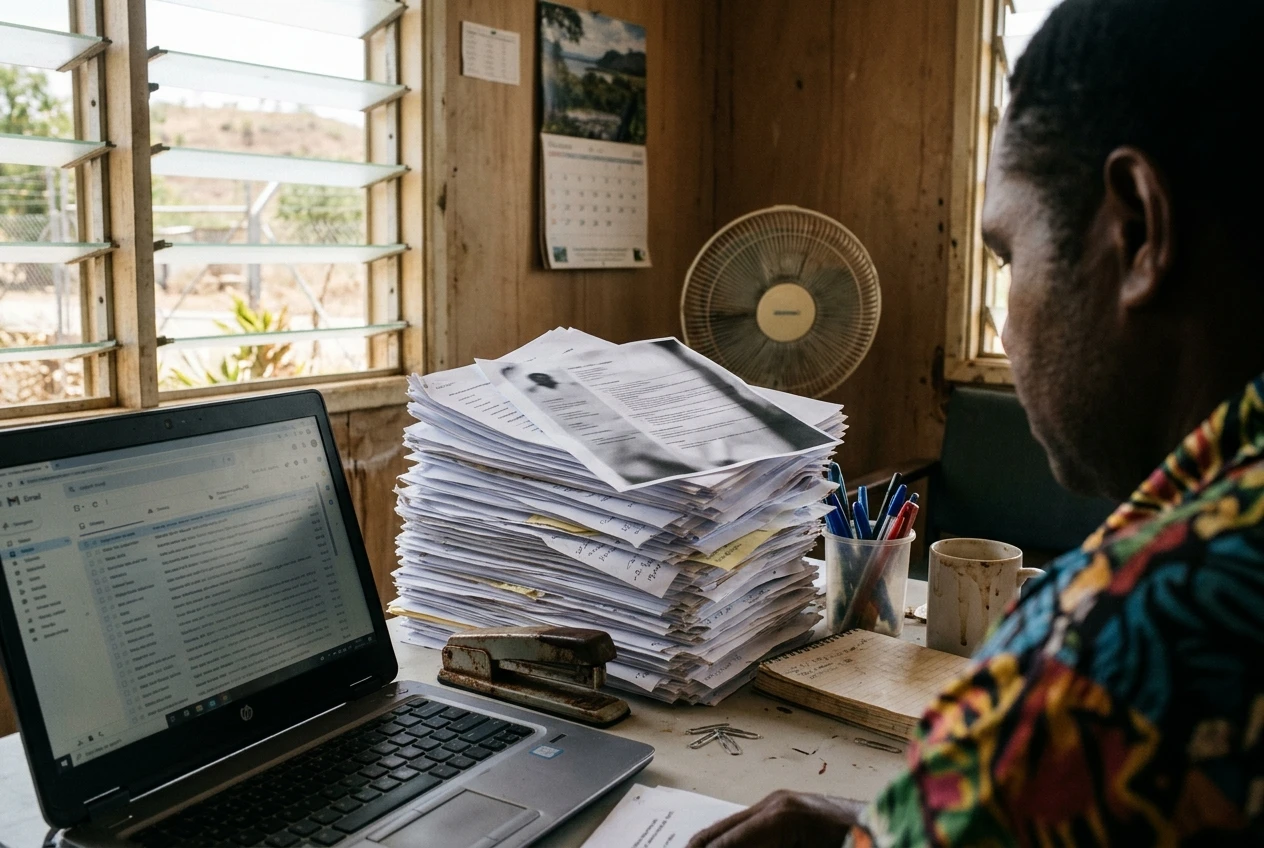
- The CV arrives as a blurry photo of a paper page, or as a file the employer cannot open.
- The email address is a nickname or a string of numbers, which makes the application look careless.
- The email has no subject line, no message and no attachment, or the wrong attachment.
- The invitation to an interview or a video call sits unread because the applicant checks email only now and then.
- The application form online is left half finished because the applicant did not know how to upload a document.
Each of these is a small mistake, and each is easy to fix. The employer reading a pile of applications does not know why you made it, only that another applicant did not.
The six skills to build first, in order
The order matters, because each skill depends on the one before it.
- Handling your device and your files. Know how to create a folder, name a file, find a download, check how much storage is left, and move a file from one place to another. Most trouble with applications is really a lost or misnamed file.
- Typing and writing a simple document. Learn to type with reasonable speed and accuracy, then to use a word processor to set out a letter or CV with a clear heading, plain font and consistent spacing. Learn to save the document as a PDF.
- Email and professional communication. Set up an email account, check it daily, and write short messages with a clear subject line. Learn to attach files, reply to everyone who needs to read the reply, and sign off with your full name and phone number.
- Passwords and account safety. Use a different password for your email than for social media, keep it somewhere safe that is not your phone’s notes screen, and never share a one-time code with anyone. Your email account is the key to every other account, so protect it first.
- Searching and applying online. Use search to find an employer’s official website, read an advertisement closely, and complete an online form including uploading documents. Check the closing date and the contact details before you start.
- Spreadsheets. Learn rows and columns, typing figures, adding a column with a sum, and formatting a table so it prints neatly. This is the skill many job advertisements mean when they list “Excel”, and it is useful in stores, schools, clinics and offices.
If you can do the first four well, you already meet the basic requirement of many entry-level positions. The fifth and sixth lift you above applicants who stop there. For tools that suit running a small business of your own, see the digital tools for small business in Papua New Guinea.
How to practise with a small data bundle or none at all
Most of the practice you need does not use data. Typing, formatting, file handling and spreadsheet work all run offline on a phone or a computer, as long as the app is already installed.
Practise offline:

- Type a page of text every day in a notes or document app. Copy a paragraph from a newspaper or a textbook, then check your errors.
- Draft your CV in a document app. Rewrite it three times, shortening and tidying it each time.
- Create folders on your phone for CV, certificates, applications and photos. Rename files so they say what they are, such as “Firstname-Surname-CV”.
- Build a simple table in a spreadsheet app: a weekly budget, a list of school fees paid, or a stock list for a family trade store.
Spend data on purpose. Decide in advance what a bundle will be used for: downloading an app, sending a finished application, or watching one lesson video. Switch off automatic app updates and background data, and use your phone’s data saver setting if it has one. Close apps you are not using so they do not pull data without you knowing.
Download once, use many times. If a lab or a friend has stronger or cheaper access, download the lesson video, the template or the free office app there, then practise at home with no signal at all. How to study online in Papua New Guinea when data is expensive goes deeper on getting course material down efficiently.
Borrowing access: school labs, workplaces, churches and friends
Not everyone owns a computer, and many people share one. Used well, shared access is enough.

School and university labs. If you are still a student, or are a recent graduate, ask the lab supervisor whether former students may use it and at what times. Use your sessions for tasks that need a larger screen or keyboard: writing the CV, practising spreadsheets, completing a long online form.
Workplaces. If a relative or friend works in an office, ask politely whether you could use a computer outside working hours, and be specific about how long you need. Never install anything or open a work account without permission.
Churches and community organisations. Some have a computer, a printer or a donated internet connection. Ask the person responsible, offer to help in return, and be clear that you are looking for work and need time to prepare applications.
Friends and family. A friend with a laptop can sit with you for an hour once a week. Agree a time and a plan, so that the visit is for typing, saving and sending rather than only watching.
A few habits keep you safe on a computer that is not yours:
- Carry your files on a USB drive or email them to yourself, and delete any copies you leave behind.
- Sign out of your email when you finish, and do not tick “remember me” or “save password”.
- Check the downloads folder before you leave, and remove your CV and any scanned documents.
- Do not bring a USB drive back and forth between computers that you have not scanned, since shared machines often carry viruses.
Proving your skills with a clean CV, a professional email address and one small sample of your work
You cannot expect an employer to take your word for your digital skills. Three things show them.
A professional email address. Use your real name, for example first name and surname with perhaps a number. Avoid nicknames, jokes and anything you would not say to a manager. Put it at the top of your CV with your phone number.
A clean CV. Keep it to one or two pages, in one plain font, with clear headings for education, work or volunteer experience, skills and referees. Leave out photos unless the advertisement requests one. Save it as a PDF named with your own name, so it opens the same way on any device. Open the file on another phone or computer before you send it, to check nothing has moved.
One small sample of your work. A sample shows that you can do what the CV claims. It can be a neatly formatted one-page letter, a spreadsheet with a simple budget and a total, a poster for a school or church event, or a short report from a local project. Keep it to one page, save it as a PDF, and attach it when an employer welcomes extra material. Do not use anyone’s private information in it.
Together these three items answer the employer’s first question: can this person work with a computer without a lot of help?
How to spot a fake job advert or recruitment scam before it costs you
People looking for work are common targets for scams, and a fake advertisement can cost you money, documents or your identity. Treat it as suspicious when:
- You are asked to pay a fee for an application, an interview, a medical test, a uniform or training.
- The employer uses a free email address, such as one ending in a general webmail service, instead of an address at the company’s own website.
- You are offered a job without any interview or screening.
- The message pressures you to reply in hours, or to keep the offer secret.
- You are asked for your bank card details, a PIN, a password or a one-time code. A genuine employer does not need these to hire you.
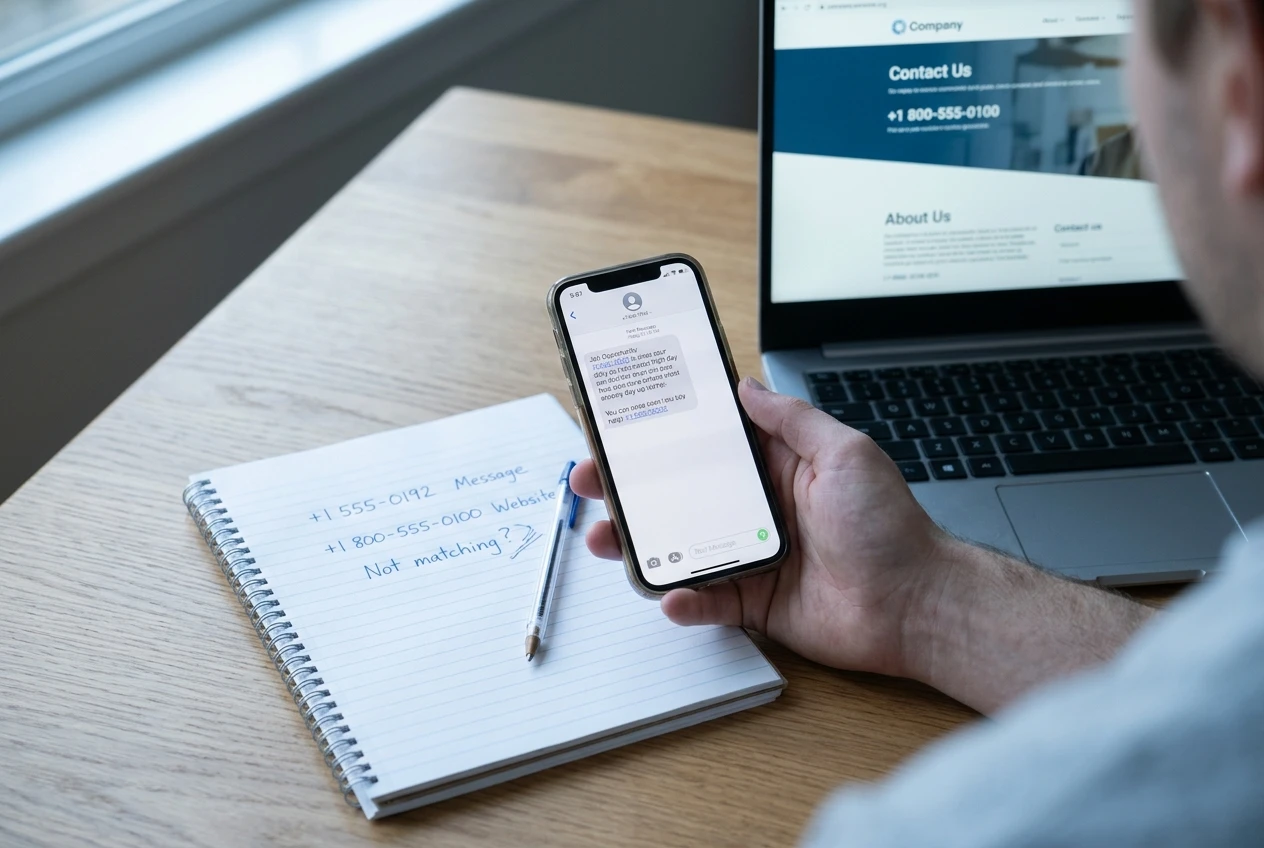
- You cannot find the company on its own official website, or the phone number in the advertisement does not match the one on that website.
Before you reply, find the employer’s official website yourself, by searching for the name and not by clicking a link in the message. Contact the company through the details listed there and ask whether the vacancy is real. Show the advertisement to someone you trust. If the job is through a recruitment agency, how to check a PNG mining recruitment agency before you hand over your documents lists what to verify first.
Send copies of your documents only after you have confirmed who is receiving them. If anyone asks you to pay to get a job, stop and walk away.
A 90-day starter plan from a basic phone
You can start this week with the phone you already have. Aim for about 20 to 30 minutes on most days, and use data only where the plan says so.
Days 1 to 30: handle the device and write
- Create folders on your phone for your CV, certificates and applications. Rename your existing files clearly.
- Type for 15 minutes a day in a notes app, copying text and then checking your mistakes.
- Set up an email account with a professional address if you do not have one, and write down the password somewhere safe.
- Write a first draft of your CV in a document app, and update it each week.
Days 31 to 60: send and search
- Turn your CV into a PDF and send it as an attachment to a friend. Ask them to confirm it opened properly.
- Write three short practice emails with a clear subject line and a signature, and send them to people you trust.
- Check your email once a day, even if only for a minute.
- Practise searching for an employer’s official website and reading its careers page. Compare what you find with a job advertisement from another source.
- Review your passwords and replace any you share between accounts.
Days 61 to 90: show your skills
- Build a simple spreadsheet, such as a household budget with a total, and practise formatting it so it prints on one page.
- Prepare your one-page sample and save it as a PDF.
- Use a lab, a workplace or a friend’s computer to complete one full online application form, including uploading your documents.
- Apply for at least three vacancies you have checked as genuine, and keep a list of each employer, the closing date and the date you applied.
At the end of 90 days you will have a tidy CV, a professional email address, a sample of your work and some experience sending real applications. Employers can see all of that, and each one is a step many applicants never take.
Tell us how you learned a digital skill with little data or no home internet. Send your story to PAPUANIUGINI.ORG and it may be featured in our community stories.